Showing posts with label beginner. Show all posts

Change Program that Opens a File

Sunday, August 2, 2009 · 0 komentar

If you have a file that can be opened with the existing application, but when click on that file can not be opened. To be able to open it, follow the trick below:
  1. Open Windows Explorer.
  2. Click on the file to be opened by a different program.
  3. On the File menu click Properties.
  4. On the General tab next to Opens with: click on the Change button.
  5. Click on the name of the program that is to open the file, or click Other to select a program that is not listed.
Notes :

This change affects all files that have the same file name extension as the file you selected. For example, if you change the program that opens a .jpg file, all .jpg files will open in this program.

You can also specify a different program by selecting a file that you changed, clicking the File menu, clicking Open With, and then clicking a program name, or clicking Other, and then selecting the name of the program.
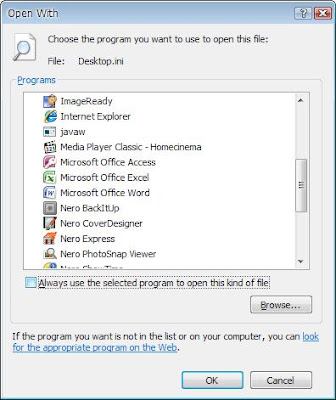
Open with picture

Change Screen Resolution Windows XP

Wednesday, July 29, 2009 · 0 komentar

Follow the tips below to change the sreen resolution on your monitor.
  1. Right click on Desktop, select Properties.
  2. In the Display Properties window, select the Settings tab.
  3. In the Screen Resolution section, move the slider to the right to higger resolution and slide to the left for lower resolution.
  4. Then click Apply.
  5. If there is confirmation, click OK.
Tip: To monitor CRT 15-inch select 800x600 and 17-inch select 1024x768, but you can choose according to your taste.

Note: A higher screen resolution reduces the size of items on a monitor screen and increases the size of the desktop. Monitor and display adapter determine whether the screen can be changed

Display Properties Picture

How to Change Screen Refresh Rate

Tuesday, July 28, 2009 · 0 komentar

If you are every day in front of the computer, the long run you will feel the eyes tired. LCD monitor user will be more comfortable than the CRT monitor user's.

If you use a CRT, you can try the following tips so that your eyes do not get tired quickly.
  1. Right-click on the Desktop, then select Properties.
  2. In the Display Properties window, select the Settings tab.
  3. Select the Advanced button, and then a new window will open.
  4. Select the Monitor tab. In the Monitor Settings, check the Hide Modes that this monitor can not display, then click Aplly.
  5. Now on the Screen refresh rate, select the largest value, and then click Apply.
  6. If there is confirmation, press OK.

Windows Keyboard Shortcut

Monday, July 20, 2009 · 0 komentar

Here some windows keyboard shortcut in general that used daily, that make easy and faster to operate your windows :

• Alt + PrintScreen = Take a picture of your active window
• Alt + tab = Cycle between open applications
• Ctrl + Alt + Del = Open task manager to end task or restart
• Ctrl + tab = Cycle between open tabs in your browser
• Ctrl + Click = Select multiple non-contiguous files, folders, text entries
• Ctrl + C = Copy files
• Ctrl + X = Cut files
• Ctrl + V = Paste files
• Ctrl + A = Select All
• Ctrl + Z = Undo last action
• Ctrl + F = Find / Search
• Ctrl + Esc = Open the Start Menu
• Ctrl + Home = Go to the beginning of a document
• Ctrl + End = Go to the end of a document
• Ctrl + F6 = Cycle between open Office documents
• Ctrl + P = Send almost anything to the printer
• F5 = Refresh your screen / refresh web page
• PrintScreen = Take a picture of your window
• Windows Key + L = Fast user switching logon screen
• Windows Key + U = Utility Manager (Narrator, Magnifier, on-screen keyboard.)
• Windows Key + R = Run command
• Windows Key + F = Search for Files dialog
• Windows Key + E = Explorer
• Windows Key + D = Toggle Desktop / Windows view
• Windows Key + M = Minimize all Windows

Windows XP Tips - Remove Visual Effect

Thursday, July 16, 2009 · 0 komentar

Windows XP has a variety of visual effects is quite good, but if all of the effect is activated, it is not directly to your computer will follow later, although not too feels. Just use effect for necessary and appropriate to the needs so, you will not spend too much memory space. Impact, of course, your computer will be slightly more quick and responsive. To activate or turn off the visual effects on windows Xp, follow the tips below:
  1. Right-click on the MyComputer icon and select Properties.
  2. Select the Advance tab. In the Performance box, select Settings.
  3. Performance Options window will open. Here you can see all the effects are offered on windows xp. To enable, check the items and uncheck to disable the item.
  4. Click Ok to apply changes.

 Remove Visual Effect Picture

Windows Vista Tips - Change Desktop Background

Tuesday, July 14, 2009 · 0 komentar

At the time this tutorial will explain on how to change desktop background on windows vista, because I used different ways to change wallpaper in xp. For advanced users, this may not be a problem, but for the new windows vista user, hopefully these tips can be useful. To perform the replacement of background Vista, follow steps below:
  1. Right click on your desktop
  2. In the drop-down menu that appears, select Personalize.
  3. In the new window that opens, select the Browse button to select the image that will be used as your desktop background. If you do not have pictures, windows vista background already provides the option for you, you only choose one only.
  4. Select the position of your image as you wish. Click OK.
Now you have the appropriate desktop background of your choice.

Windows Vista Tips - Vista Explorer Optimization

Saturday, July 11, 2009 · 0 komentar

Windows Explorer display on Windows Vista has many differences compared to earlier versions of windows. This, of course, will throw for the nonexpert user. Therefore, in order to more easily interact with the new Windows Explorer, follow the tips below:
  • Open the windows Explorer (Right-click on the windows logo and then select Explore).
  • In the toolbar menu select Tools-> Folder Options.
  • Eliminate uncheck the following options:
  1. Automatically search for network folders and printers.
  2. Display file size information in folder tips.
  3. Display simple folder view in Explorer's Folder list.
  4. Hide extensions for know files and folders.
  5. Hide protectd operating system files (Recommended).
  6. Use Domain Folder Sharing Wizard.
  • Give a check on the following:
  1. Select show hidden files and folders.
  2. Launch folder windows in a separate process.
  3. Save changes by clicking OK.

Resize Vista Icon

Tuesday, July 7, 2009 · 0 komentar

Vista icon has big size, of course this will be easier for us to find an application icon. But if you do not like the large size and would look like windows XP icon, simply Right click any empty area of your Desktop and left click the word View, then the words Classic Icons.

Resize Vista Icon
While for the icon on the Start Menu, right click the Start button and choose Properties. Under the Start Menu tab, click the Customize button. Scroll all the way to the bottom and make sure there is not a check next to the words Use large icons.

Make Fonts More Viewable

· 0 komentar

What you feel that the font that is displayed under the windows so clear, for the use of old such as typing, this will be exhausting. But actually have windows font settings that can be arranged. To be more comfortable in reading the text, follow the steps below:
  1. Right-click on the desktop and select Properties.
  2. In the Display Properties window, select the Appearance tab.
  3. Click the Effects button.
  4. Check the option Use the following method to smooth edges of screen fonts, and in the dropdown menu, select Clear Type. By default windows sets this option in the Standard option.
  5. Click OK on the effects window and OK on the Display Properties window.
Font should now appear to be more clear and easier to read.

Make Fonts More Viewable

Changing Font Display in Windows Explorer

Saturday, June 27, 2009 · 0 komentar

As we know, Windows Explorer and My Computer display the same font that Windows XP uses for icon titles on your desktop, that is Tahoma 8pt. If you want to change the font or font size used in Windows Explorer, follow these steps:

  1. Right-click on the desktop and select Properties to enter the menu on the Display Properties settings.
  2. Select the Appearance tab.
  3. Click the Advanced button.
  4. Select Icon from the drop-down menu item.
  5. Select the font you like dar the drop-down menu and the font size font.
  6. Click OK to close the Advanced Appearance window and the Display Properties.

Remove Security Center Icon

Sunday, May 10, 2009 · 0 komentar

Windows Vista comes with many features, including Windows Security Center. This feature serves as the central control of the PC security against various attacks that may attack the PC such as viruses, spyware, worms and other malware.
Proof of the existence of these features will be felt immediately after the installation windows for first time. A shield-shaped icon appears in the notification area for member-level security information on the PC.
If the condition is considered less secure PC, the icon will be quite choosy with regard to the security of users PC. Therefore, for those of you who want to hide the Security Center icon, follow the steps below:

  1. Open the Control Panel and select Security Center.
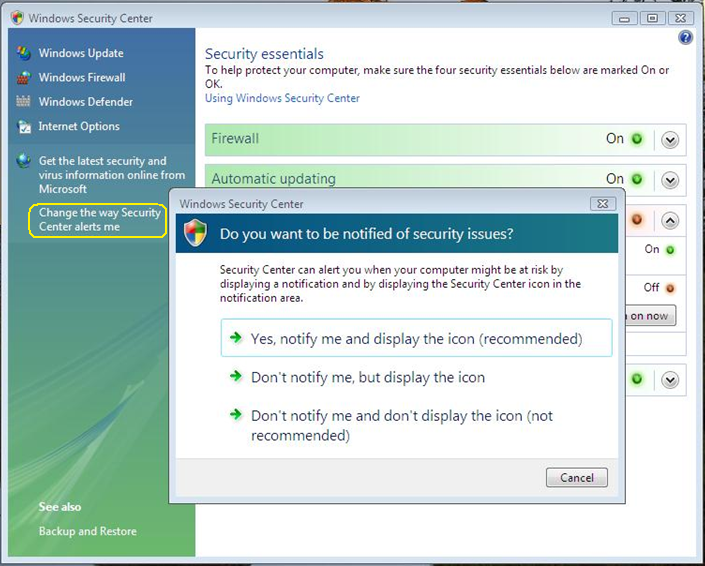
  2. On Window Security Center window, click Change the Way Security Center alerts me that placed on left panel.
  3. In the dialog box that appears with the question Do you want to be notified of security issues? Select Don't notify me and don't display the icon.
  4. Close the windows Security Center window.


Vista System Health Report

Tuesday, May 5, 2009 · 0 komentar

As we know, the windows vista features the System Health Report is able to produce a report on the condition of the PC. Reports provided based on information provided Reability and Performance Monitor. With this feature, we can quickly obtain information quickly on the area system which has the potential to cause issues. To use this feature, follow the steps below:

  1. Open the Control Panel.
  2. Select System and Maintenance menu.
  3. Select Performance Information and Tools.
  4. In the task list which is on the left, select Advanced Tools.
  5. The diagnostic results will be displayed last. This process takes several minutes. Results of the diagnosis will be displayed in the Reliability and Performance Monitor window.
Reliability and Performance Monitor


Better Sound on Vista

Monday, May 4, 2009 · 0 komentar

In Windows XP, any regulation made standard. There are no features to optimize the sound quality like bass, surround or equalition. Like others, if we install a sound card with a variety of additional applications to be able to produce a better sound from the onboard soundcard. For those who still use the onboard soundcard, can still vote, but by using Windows Vista, because on Windows Vista is equipped with the capability of voice. Do the following tips:
 
  1. Go to the Control Panel, select the Sound menu.
  2. In the Sound window, select the Playback tab.
  3. Select the speaker icon and click Properties.
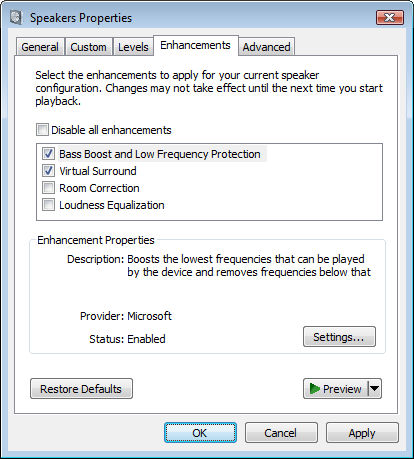
  4. Properties window appears, click the tab Enchacements and see the box that contain options Bass Boost, Virtual Surround, Room Correction, and Loudness Equalization. Check the options above and click Settings to configure the options selected above.
  5. Save changes by clicking the OK button
vista sound properties

Computer Tips


Enlarge Cursor Size Trick

Sunday, May 3, 2009 · 0 komentar

Word processing applications typically have a vertical blinking cursor that allows you to show the position of the text that will appear next. So if you want more easier to find that cursor, and with a little trick, you can enlarge the size of the cursor is. Follow the steps below:

  1. Open Start-> Control Panel.
  2. Type "optimize visual display" in the search box in the Control Panel.
  3. After that, the shortcut will show search results, click the shortcut.
  4. On the line "Set the tickness of the blinking cursor", change the value of a combo box with a greater value.
  5. Click the save button to save the changes.


Disable Some Features

Wednesday, March 25, 2009 · 0 komentar

There are many new features in Windows Vista that are installed by default that you may not need. These extra and un-needed features can slow down your computer and take up more storage space. Windows Features can be un-installed using the Windows Features utility. Follow these steps to uninstall applications such as the Windows Fax and Scan and many more. To Turn-Off Some Un-Needed Features:

  1. Go to Start Menu --> select Control Panel
  2. Under Programs click Uninstall a program
  3. On the left side menu, click on Turn Windows features on or off
  4. Scroll through the list as shown below and uncheck from any feature you do not want installed.
  5. Click OK when you are finished making your changes. The features will now be uninstalled.


Disable File Indexing

· 0 komentar

Windows Vista Search Indexing is constantly checking the files on your system to make their information available for quick searching. This is helpful, but can severely slow system performance as the average user doesn’t use the search function frequently.To shut down constant indexing:

  1. Click the Start button
  2. Select Computer
  3. Right-click on the C: Drive icon
  4. Select Properties
  5. Select the General Tab
  6. Uncheck Index this drive for faster searching
  7. On the next dialog box, select Apply Changes to Drive C:, subfolders and files
  8. Click OK


Reduce Graphical Effects

· 0 komentar

Vista looks beautifull because of its new aero glass transparency effects. Here is how to enable and disable this new eye candy.

  1. Click Start (Windows) button
  2. Select the Control Panel
  3. Double-click Click Appearance and Personalization
  4. Under Personalization, click Change the color scheme
  5. In the Appearance Settings dialog box, click Windows Vista Basic, and then click OK.
  6. Or, if you prefer a Windows 2000-style interface, click Windows Standard, and then click OK.


Disable UAC

Tuesday, March 24, 2009 · 0 komentar

Now, there’s a lot of talk about the new User Account Control policy in Vista, and all I can say is that it annoys the heck out of 99% of users and slows down normal computer usage. To turn it off, the easiest way is to:

  1. Click the Start (Windows) button
  2. Select the Control Panel
  3. Type in ‘UAC‘ into the search bar
  4. It’ll bring up a search result of ‘Turn User Account Control (UAC) on or off’
  5. Just follow the prompts from there


Remove Your Programs

Monday, March 23, 2009 · 0 komentar

You may have a bunch of software packages on your hard drive that are no longer needed, or they were gratuitously installed when you downloaded some other package. Toolbars, file-sharing programs, free email enhancers, online shopping "companions" and download managers are notorious for this practice. These uninvited guests can put a big drag on your startup time, cause web pages to load slowly, and generally bog down your computer.

  1. Click Start button
  2. Select Control Panel
  3. Double-click Add/Remove Programs icon
  4. See what programs are installed that you don’t typically use
  5. Select the Remove button for the ones you know you don't need


If you’re unsure about some programs, do a web search to learn about the ones that you need to keep.


Disk Defragmenter

Sunday, March 22, 2009 · 0 komentar

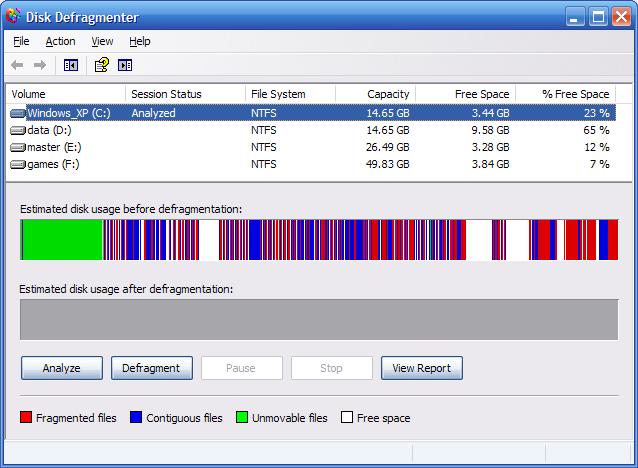
Files that are stored in the hard disk will be fragmented long run, this of course can slow system performance. To do this disk defragmenter at least once a month. Follow the steps below:

1. Click Start --> All programs --> Accessories --> System Tools --> 
    Disk Defragmenter
2. Disk Defragmenter window will open


3. Select the drive, then click Analyze
4. If show message like "You should defragment this volume", it better
    if you defrag the current volume, simply click Defragment. But if
    show message like "Tou do not need to defrag this volume", you can
    cancel defragment process for current volume.

After defragment process your system performance should increase, even little.


Followers

Site Sponsors

Add to Technorati Favorites
Click Here to Advertise On My Blog